 webCOMAND Docs
 User Guide
 User Interface
webCOMAND User Interface
To access webCOMAND, you must first set up a password and sign in.
Password Set Up
Once you sign up, are assigned a user account, or have set up webCOMAND, you will receive an email and/or be presented with your initial sign in link. Click the link or open the web address in a web browser to set your password. The password should be unique to this webCOMAND account and must meet the minimum requirements.
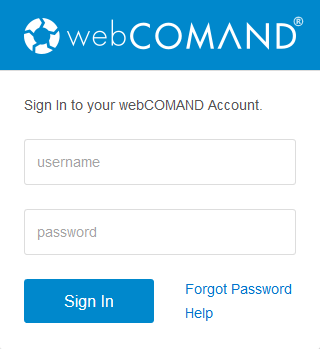 Sign In
Once your password is set, you can sign in from the account web address that looks like https://<account>.webcomand.com/.
Unable to sign in?
If you are unable to sign in, click Forgot Password or Help in the bottom-right to get back on track.
User Interface
Once signed in, you will see the webCOMAND user interface, which is divided into two parts, the header and workspace.
Header
The header is always visible for consistent access to the current app menu and common features.

 App Menu
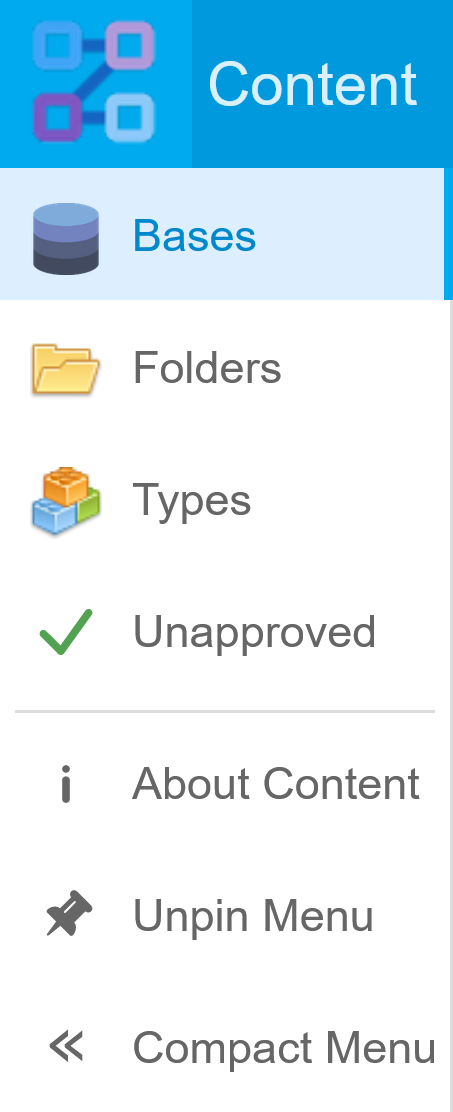
Access the active app menu from the app icon in the top-left. The menu will be unique to each app, but typically includes the following standard options at the bottom.
- About - View the app name, description and version.
- Pin/Unpin Menu - When pinned, the app menu will remain open and the workspace will move to the right. When unpinned, the app menu will overlap the workspace and automatically close when an item is selected from the app menu.
- Compact/Expand Menu - The default menu shows icons and labels. The compact menu only shows icons, to maximize the workspace area. Labels appear when the mouse hovers over an icon in the compact menu.
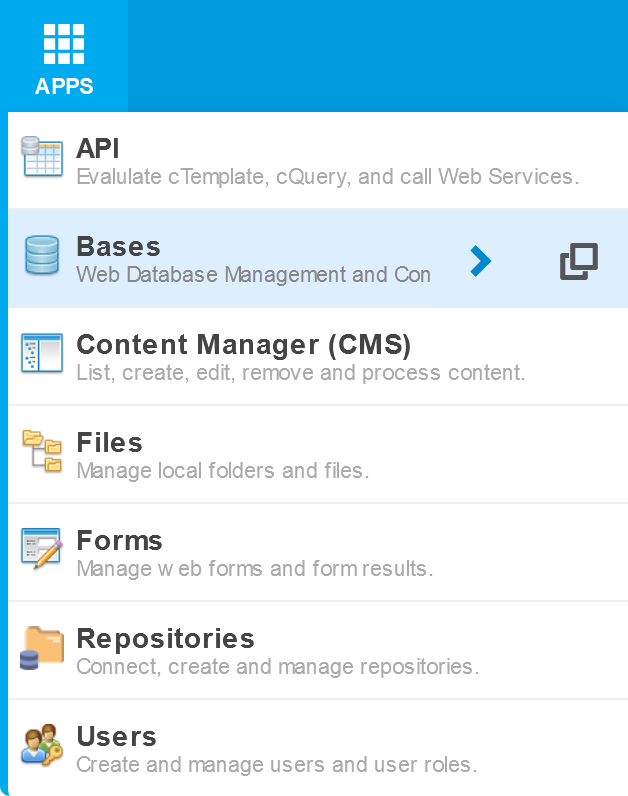
Apps
Installed Apps are accessible from the Apps menu.
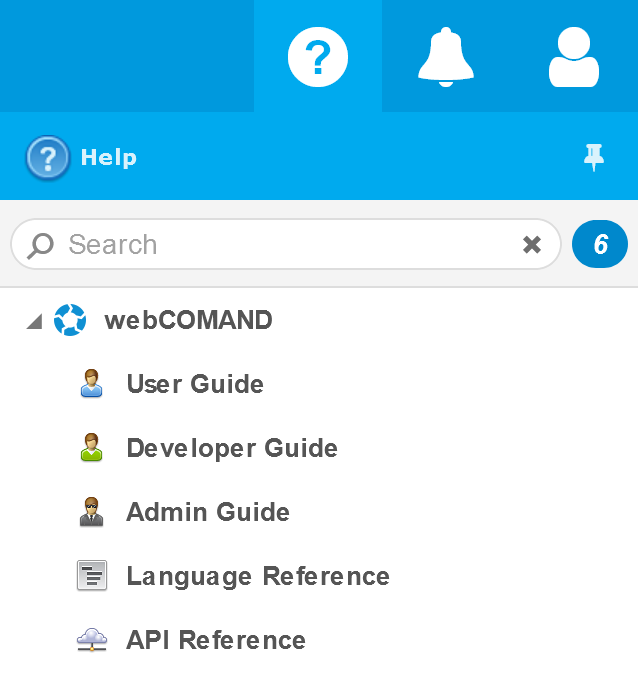
Help
Quick access to documentation about webCOMAND and various apps, as well as custom documentation specific to the account. The Title Bar also includes the webCOMAND version.
Activity
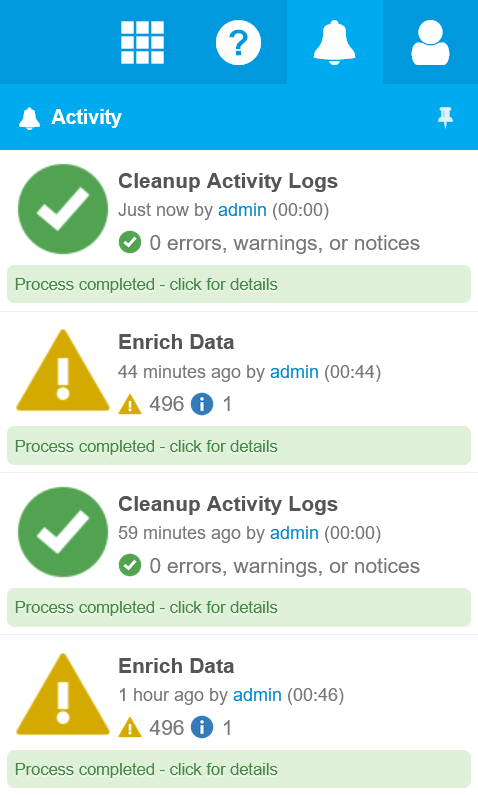
List recent system activity, including scheduled and manually triggered tasks, such as a publish or repository backup. A numeric badge indicates active tasks.
Users
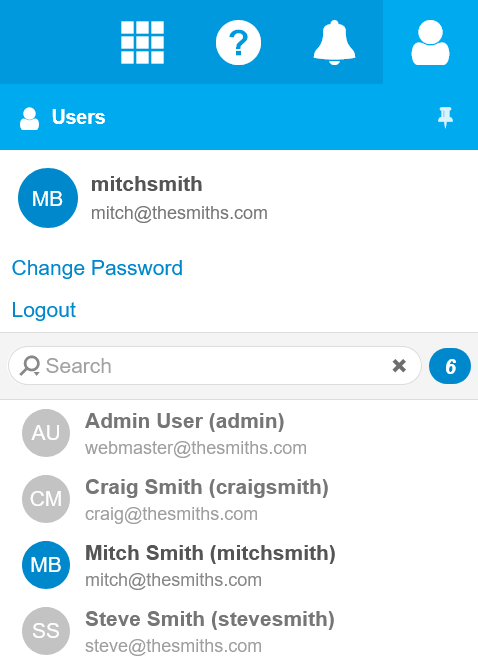
Access your user account options, including Change Password and Logout. A contact list shows other users and their status. Administrators can also open a user in the Users App from here.
Workspace
When you sign in, your default app will be launched and appear in the workspace below the header. Most webCOMAND apps feature common components, described next under Panels and Views. For information about specific apps, see Apps.